 Swipebird
LinkedIn Saved Posts: Where to Find, Search and Export Them
LinkedIn makes saving a post easy and getting it back hard. Here is where your saved posts live on every device, why some vanish, what LinkedIn's own export really gives you, and how to search the whole list in seconds.
- Desktop: homepage, left pane, Saved items, then Saved posts and articles.
- iPhone and Android: tap your profile picture, then Saved posts.
- Direct link: linkedin.com/my-items/saved-posts/
Where are my saved posts on LinkedIn?
Every post you save goes into one private list. LinkedIn gives you three ways in, and they all open the same list.
- DesktopHome feedSaved items (left)Saved posts and articles
- iPhone and AndroidYour profile pictureSaved posts
- Any browserlinkedin.com/my-items/saved-posts/same list
On a computer
- Open the LinkedIn homepage while signed in.
- Click Saved items in the left pane, under your profile card.
- Choose Saved posts and articles. Use the filter at the top to switch between all saves and articles only.
LinkedIn's help page puts it in one line:
"Click Saved Items on the left pane of your LinkedIn homepage. Click Saved posts and articles from the list under Saved items."LinkedIn Help, Save posts and articles
On iPhone and Android
Tap your profile picture at the top left, then tap Saved posts. The menu is the same on both systems. If you use LinkedIn in a phone browser rather than the app, the direct link above opens the list too.
How do I save or unsave a post?
Open the More menu (the three dots at the top right of a post) and choose Save. To remove it, open the same menu on the post and choose Unsave. Right after you save, a short banner appears with a View Saved Posts link, which is the fastest way to check it worked.
Some feed items cannot be saved at all. LinkedIn lists recommended jobs, follow recommendations, work anniversaries and profile change updates. Jobs you save from the Jobs page go to My jobs, a separate list.
LinkedIn saves the whole post. There is no way to save a single photo from a carousel or an image post, so if a picture is the reason you saved something, keep that in mind when the post later disappears (see below).
Saved posts missing? The five usual causes
1. The author deleted or restricted the post
Your list only points at the original post. When the author deletes it, or limits it to their connections, it drops out of your saved list or opens to an error. LinkedIn does not keep a copy for you.
2. You are in a different account
People with a work and a personal account often save on one and look on the other. Check the photo in the top bar.
3. It was unsaved by accident
The Save and Unsave options sit in the same spot of the same menu. A quick tap on a post you already saved removes it without a prompt.
4. You are looking at the Articles filter
If the list looks short, check the filter at the top. Articles shows only long-form articles, not regular posts.
5. You saved a job, not a post
Saved jobs live under Jobs, then My jobs. They never appear in saved posts.
The fix for cause 1: keep your own copy. A link to a post can die; a copy of its text and image does not. That is the main reason people move their saves out of LinkedIn, and it is what the last section of this guide covers.
What LinkedIn can and cannot do with saved posts
This is the part most guides skip. Here is what the native list offers today, compared with LinkedIn's data download and a dedicated swipe file.
| Need | Saved list | Data download | Swipebird |
|---|---|---|---|
| Search by words | No | No (links only) | Yes, text, notes and labels |
| Folders or labels | No | No | Labels and notes |
| Post text kept | Link only | Link only | Yes, with the preview image |
| Survives the author deleting it | No | Dead link | Your copy stays |
| One place with X and Instagram saves | No | No | Yes |
| Your AI can read it | No | No | Claude, ChatGPT, Cursor |
| Private to you | Yes | Yes | Yes |
LinkedIn's help pages describe no folders or collections for saved posts, and no search box. A few blogs mention collections; we could not find them in LinkedIn's own documentation, so we do not count on them here. Independent walkthroughs from AuthoredUp and LinkedMash describe the same thing: one list, newest first, with no search, folders or tags. LinkedMash also notes that Ctrl+F only finds text that has already loaded on the page.
Can anyone see your saved posts? Does the author know?
Your list is private. Nobody else can open it, including the people whose posts you saved.
The author is not told who saved it. LinkedIn's help pages describe no notification for saves. Creators can see the number of saves on a post in its analytics, as a total, without names. Saving leaves nothing on your profile, unlike a like or a comment.
Export your saved posts with LinkedIn's data download
LinkedIn has no export button on the saved list, but its account-wide data download includes a file called Saved Items. Before you request it, know what is in it:
"Contains the saved date and URL of a post, article, or other content."LinkedIn Help, Download your account data
So you get two things per save: when you saved it and a link. The post text, the author's name and the image are not included. If the author has since deleted the post, the link leads nowhere.
- Use a computer. LinkedIn says the feature "is currently not available on mobile".
- Click the Me icon at the top of the homepage, then Settings & Privacy.
- Click Data Privacy on the left rail, then Download your data under "How LinkedIn uses your data".
- Select the data you want and click Request archive. Saved Items sits in the group LinkedIn lists as "Available within 48 hours".
- Wait for the email, then download the file. LinkedIn keeps it available for 72 hours.
| Saved date | Link |
|---|---|
| 2026-10-21 08:14 | https://www.linkedin.com/feed/update/urn:li:activity:… |
| 2026-10-19 17:52 | https://www.linkedin.com/feed/update/urn:li:activity:… |
| 2026-10-02 11:03 | https://www.linkedin.com/pulse/… |
The download is useful as a backup of links. It is not a way to find "that post about pricing pages from March".
Search and organize every LinkedIn save in one place
Swipebird's Chrome extension notices when you open your saved posts page and offers to bring them all in.
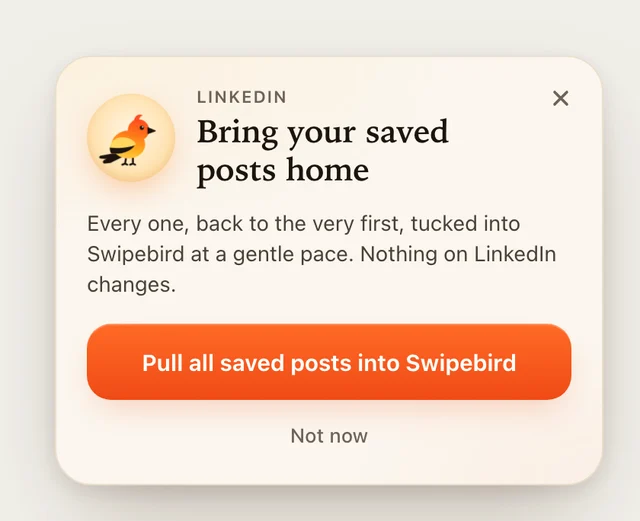
- Open your saved posts page in Chrome with the Swipebird extension installed and signed in.
- Click "Pull all saved posts into Swipebird". It scrolls your list at a human pace, back to your first save, and reads only what the page shows you: the post text, the author, the link and the preview image.
- Come back later and click "Catch up". It brings in only the new ones and stops as soon as it reaches posts you already have. Nothing is saved twice.
The extension does not like, unsave or post anything, and it never asks for your LinkedIn password. Our privacy policy spells out what is stored.
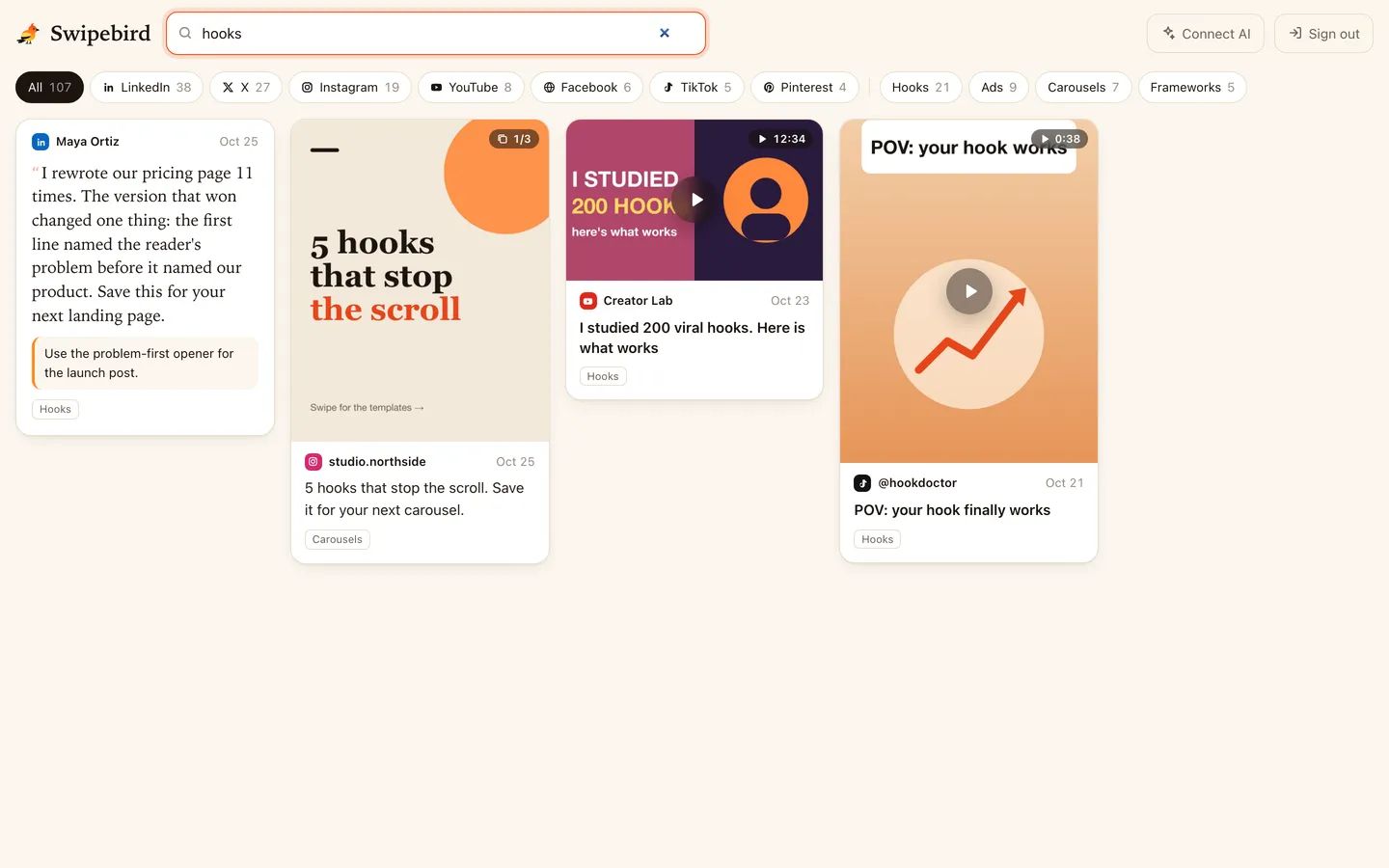
Once they are in, type any word to search the text, your notes and your labels. Add labels such as hooks, carousels or client ideas from the iPhone app, or ask your AI to label a batch for you. New posts can go straight in from the iPhone share sheet, or with Alt + Shift + S in Chrome.
Ask Claude or ChatGPT about your saved posts
Swipebird connects to Claude, ChatGPT and Cursor through its AI connector, so your assistant can search your saves and quote them back. Prompts to try once your LinkedIn saves are in:
Search my Swipebird saves from LinkedIn and list the 10 opening lines I saved most recently. Group them by hook type (question, number, story, contrarian).
I'm writing a LinkedIn post about pricing a new product. Search my Swipebird saves for posts about pricing, show me the three strongest, and explain what each one does well.
Look through my last 50 LinkedIn saves in Swipebird and add a label to each: hooks, carousels, storytelling, or data. Tell me which ones didn't fit.
If you write on LinkedIn every week, Ligo, the LinkedIn content assistant from the same team, can turn those patterns into drafts in your own voice.
LinkedIn saved posts FAQ
Where are my saved items on LinkedIn?
On a computer, click Saved items in the left pane of the homepage, then Saved posts and articles. In the app, tap your profile picture, then Saved posts. The direct link is linkedin.com/my-items/saved-posts/.
Can anyone see my saved posts on LinkedIn?
No. Only you can see your saved list.
What does it mean when someone saves your post?
They wanted to come back to it. Saves show up as a count in your post analytics, without names. Many creators treat saves as a stronger signal than likes, because a save means the post was useful enough to keep.
Can I search my saved posts on LinkedIn?
Not inside LinkedIn. The list has an Articles filter and nothing else. Your browser's find command (Ctrl + F or Cmd + F) searches only what has loaded on screen. For a real search across every save, import them into Swipebird.
Is there a limit to how many posts I can save?
LinkedIn does not publish one. Very long lists get slow to scroll, which is the practical limit most people hit.
Do saved posts expire?
No, they stay until you unsave them or the author removes the post.
How do I save a photo from LinkedIn?
LinkedIn saves whole posts, not single images. Save the post, or share it to Swipebird, which keeps its own copy of the preview image with the text.
How do I see my saved jobs on the LinkedIn app?
Saved jobs are separate from saved posts. Open the Jobs tab and look for My jobs.

Social content strategist. Junaid has written about LinkedIn strategy for more than 3 years; his LinkedIn posts have passed 5M impressions and 10,000+ engagements, and he publishes the Hooked on LinkedIn newsletter.
Steps in this guide are checked against LinkedIn's own help pages, linked below. Spotted a menu that moved? Email [email protected].
Sources
- LinkedIn Help: Save posts and articles (paths, save and unsave).
- LinkedIn Help: Download your account data (Saved Items contents, timing, desktop only).
- AuthoredUp: How to find saved posts on LinkedIn.
- LinkedMash: How to find LinkedIn saved posts.
- Swipebird: privacy policy (what the extension reads and stores).