 Swipebird
Bookmark Manager for Social Posts: Save, Search and Reuse What You Scroll Past
Browser bookmarks were made for web pages. A LinkedIn post, a tweet or an Instagram reel breaks them: the title says nothing, the page needs a login, and the post can vanish. This guide covers what a bookmark manager is, the five kinds you can choose from, and what one needs to do before it is any good for social posts.
A bookmark manager keeps the links you save in one place so you can find them again. For social posts it has to do three more things:
- Keep the post itself, its text, author and image, not only a link that can die.
- Import what you already saved on LinkedIn, X and Instagram, without duplicates.
- Search inside the posts, so a half remembered phrase finds the save.
What is a bookmark manager?
A bookmark manager is a tool for saving links and finding them again later. Every browser has a basic one built in: Chrome keeps yours at chrome://bookmarks, with folders, a search box and an export option. Dedicated bookmark managers go further with tags, previews, full text search, sync across devices and sharing.
The job is always the same: you see something worth keeping now, and you want it back at the moment you need it. The difference between tools is how well they handle the "find it again" half. That half is where social posts cause trouble.
Why social posts break normal bookmarks
Bookmark a LinkedIn post in your browser and look at what you get: a title such as "Post | LinkedIn" and a long link. Five problems follow from that.
- The title tells you nothing. Fifty saved posts look like fifty identical lines.
- The content sits behind a login. Many posts only show their full text when you are signed in, so a plain link preview is often empty.
- Posts disappear. When an author deletes a post or limits who can see it, a bookmark (on the platform or in your browser) points at nothing.
- Your saves are already scattered. Most people have years of saves inside LinkedIn, X and Instagram, three separate lists that do not talk to each other.
- You cannot search the words. LinkedIn's saved list has no search box. X's bookmark search matches exact words only, and Instagram's saved collections are built for browsing images, not finding a phrase.
| What you need later | Browser bookmark | Platform save | Post-aware manager |
|---|---|---|---|
| The post's text | No, link and title only | Yes, while the post exists | Yes, a copy |
| The image or video cover | No | Yes, while the post exists | Yes, a copy |
| Search by any word | Title only | Limited or none | Yes |
| All platforms in one list | Yes, but as bare links | No | Yes |
| Survives the author deleting it | No | No | The copy does |
Five kinds of bookmark manager, and what each is good at
"Best bookmark manager" depends on what you save. These are the five kinds you will run into, with an honest view of where each one fits.
Plenty of people use two: browser bookmarks for the handful of sites they open daily, and a post-aware manager for everything they save while scrolling. The rest of this guide is about the second job.
What to look for in a bookmark manager for social posts
Use this list to judge any tool, including ours. A tool that misses the first three will end up as another list you never open.
- It imports your existing saves. You already did the saving on LinkedIn, X and Instagram. Starting from zero throws that work away.
- It keeps a copy, not just a link. Text, author and image, stored with the save, so it stays readable when the original goes.
- It searches inside the posts. You will remember "that hook about cold email", not the author's name or the date.
- It never saves the same post twice. The same post shared from your phone and imported from the desktop should stay one item.
- Saving is one action. A share sheet on the phone, one click or a shortcut on the computer. Anything slower and you stop doing it.
- It works without handing over your password. A tool should read only what the platform already shows you, and never post, like or change anything.
- You can find things by use, not only by platform. Labels, favourites and notes, so "hooks" or "ads to study" are one filter away.
- Your AI can read it, if you want that. Asking Claude or ChatGPT "what did I save about pricing pages" beats scrolling.
How Swipebird works as a bookmark manager
Swipebird is a swipe file for the posts and ads you save. It runs as a Chrome extension, an iPhone app and an Android app, and it works with no account: your saves stay on your device until you choose to sync.
1. Bring in everything you already saved
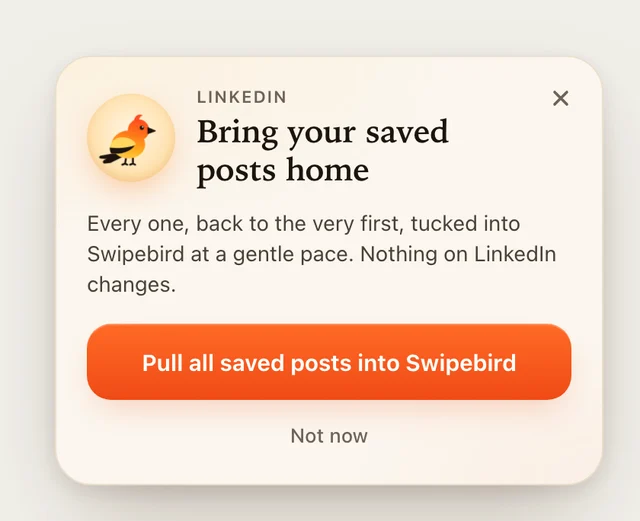
With the Chrome extension installed, open your LinkedIn saved posts, X bookmarks or Instagram saved page. A Swipebird card offers to pull them all in. It scrolls at a human pace, copies only what the page shows you, and skips anything you already have. Next time, "Catch up" adds only the new ones.
2. Save new posts in one action
On iPhone or Android, tap Share on any post, link, screenshot or bit of text and pick Swipebird. In Chrome, use the side panel, right-click any link or page, or press Alt + Shift + S (Option + Shift + S on a Mac). LinkedIn, X, Instagram, YouTube, TikTok, Pinterest and any article all land in the same library, labelled by platform and type.
3. Find it again in seconds
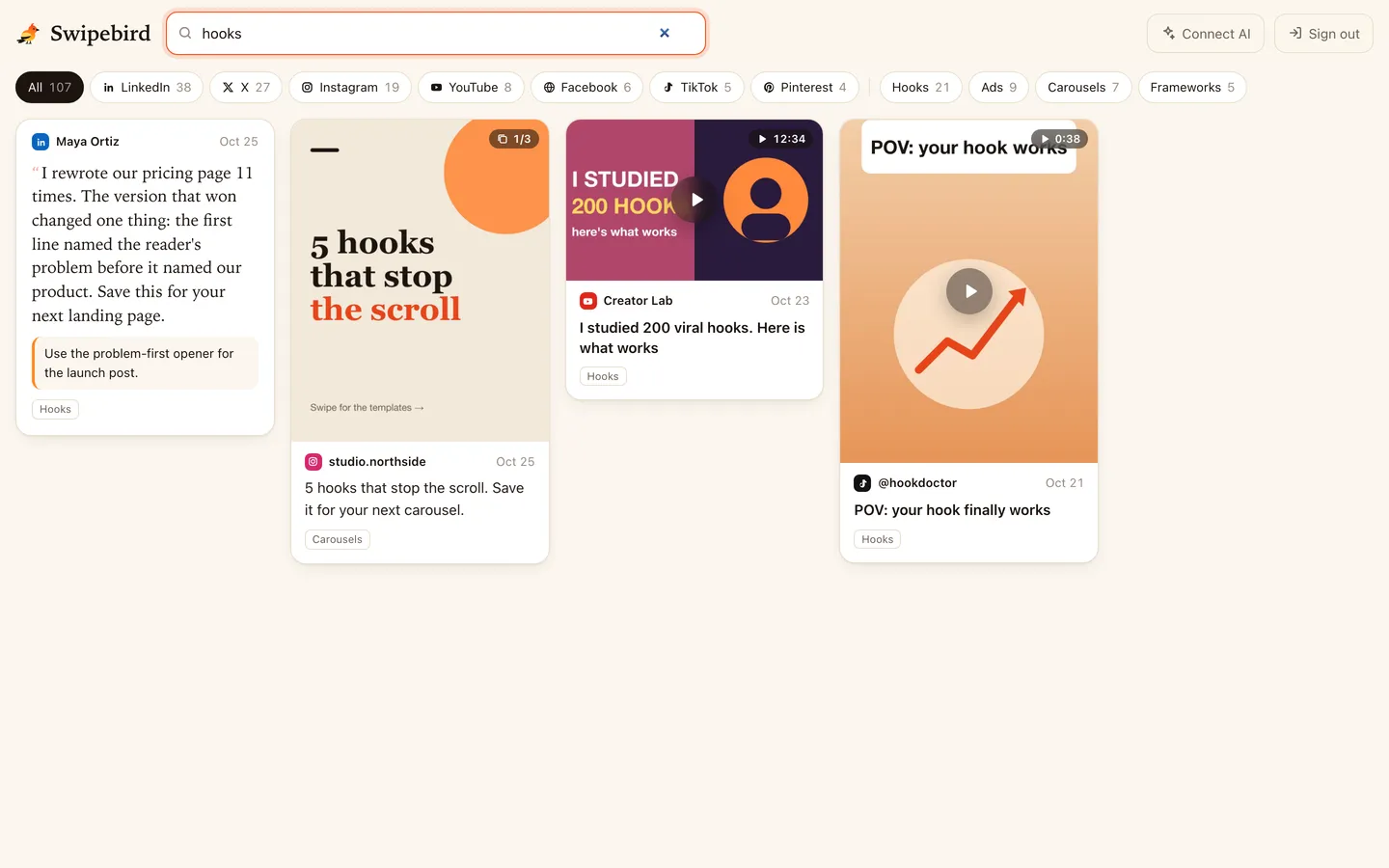
Search runs across captions, authors, notes and labels, and in the extension it works offline. Filter by platform, mark the saves you come back to as favourites, and open the original post when you need it.

4. Sync, share and ask your AI (Pro)
Free covers saving, importing and searching on each device. Swipebird Pro adds sync between your phone, your browsers and the web app at swipebird.app, public swipe files you can share with one link, and the AI connector, so Claude, ChatGPT or Cursor can search your saves and write from them. Pro starts with a free trial.
Search my Swipebird saves for posts about pricing. Pick the five with the strongest first line and explain what each hook does.
A filing system you will keep using
Most bookmark collections die from too much structure, not too little. Folders by topic feel tidy on day one and are wrong by day thirty. A lighter system holds up better:
- Sort by use, not by subject. Labels like hooks, carousels, ads to study and data to cite match the moment you go looking.
- Favourite the top few percent. The ten posts you would show a new hire are worth a star. The rest are fine in search.
- Write one line on why. "Great objection handling in the second paragraph" turns a save into something you can use. Swipebird lets you add a note when you save.
- Review on a schedule. Ten minutes on Friday, before you plan next week's posts, is when a swipe file pays off.
If you are new to the idea, our guide to what a swipe file is shows how creators and copywriters build one.
Getting more from browser bookmarks
Browser bookmarks are still the right tool for sites you open often. A few habits keep them useful:
- Keep the bookmarks bar for daily sites only. Five to ten icons, no folders.
- Use a few broad folders (Work, Tools, Reading) instead of a deep tree.
- Search with the address bar. In Chrome, typing part of a bookmark's title in the address bar finds it.
- Back them up. Chrome's bookmark manager has an Export bookmarks option in its menu that saves an HTML file any browser can import. Signing in to Chrome sync also carries them to a new computer.
Bookmark manager FAQ
What is a bookmark manager?
A tool for saving links and finding them again. Browsers include a basic one with folders and search; dedicated managers add tags, previews, full text search, sync and sharing.
What is the best bookmark manager?
It depends on what you save. For websites you visit often, your browser's built-in bookmarks are enough. For long articles, a read-later app fits. For LinkedIn posts, X bookmarks, Instagram saves and ads, use a manager that keeps a copy of each post and searches its text, such as Swipebird.
What is the best free bookmark manager?
Your browser's own bookmarks are free and fine for sites. For social posts, Swipebird is free on your device with no account: import your saves, save new ones and search them. Pro adds sync and the AI connector.
Can a bookmark manager import my LinkedIn, X and Instagram saves?
Swipebird's Chrome extension does. Open your LinkedIn saved posts, X bookmarks or Instagram saved page, click Pull all, and it copies what the page shows you, skipping anything you already have.
Are bookmarks and favorites the same thing?
Yes, mostly a naming difference. Chrome and Firefox say bookmarks, Edge and Safari's favorites bar use favorites. Both save a link to a page.
How do I organize browser bookmarks?
Keep the bookmarks bar for daily sites, use a few broad folders rather than a deep tree, delete dead links now and then, and export a backup file from the bookmark manager.
How do I move Chrome bookmarks to a new computer?
Sign in to Chrome with sync turned on, or open Chrome's bookmark manager, choose Export bookmarks to save an HTML file, then import it on the new computer.
What happens to a saved post if the author deletes it?
On the platform, and in a browser bookmark, it is gone. A manager that stored a copy, like Swipebird, still shows the text and image it kept.
Does Swipebird need my LinkedIn, X or Instagram password?
No. It reads only what those sites already show you while you are signed in, and it never posts, likes or changes anything there.

Social content strategist. Junaid reached 1.1M impressions on X in about 10 weeks and has written about LinkedIn strategy for more than 3 years. He publishes the Hooked on LinkedIn newsletter.
Swipebird features described here were checked in the current apps. Facts about other products come from their own pages, linked below. Spotted a change? Email [email protected].
Sources
- Google Chrome Help, manage bookmarks: support.google.com/chrome/answer/188842
- Google Chrome Help, import bookmarks and settings: support.google.com/chrome/answer/96816
- LinkedIn Help, saved posts and articles: www.linkedin.com/help/linkedin/answer/a527126
- X Help Center, About Bookmarks: help.x.com/en/using-x/bookmarks